> ## Documentation Index
> Fetch the complete documentation index at: https://evalprotocol.io/llms.txt
> Use this file to discover all available pages before exploring further.
# Table View
The table view is the default view when you open the UI. It shows a list of
evaluation rows which you can click to inspect. Every evaluation [row](/specification#row) corresponds
to a single [rollout](/specification#rollout).
### How to open the table view
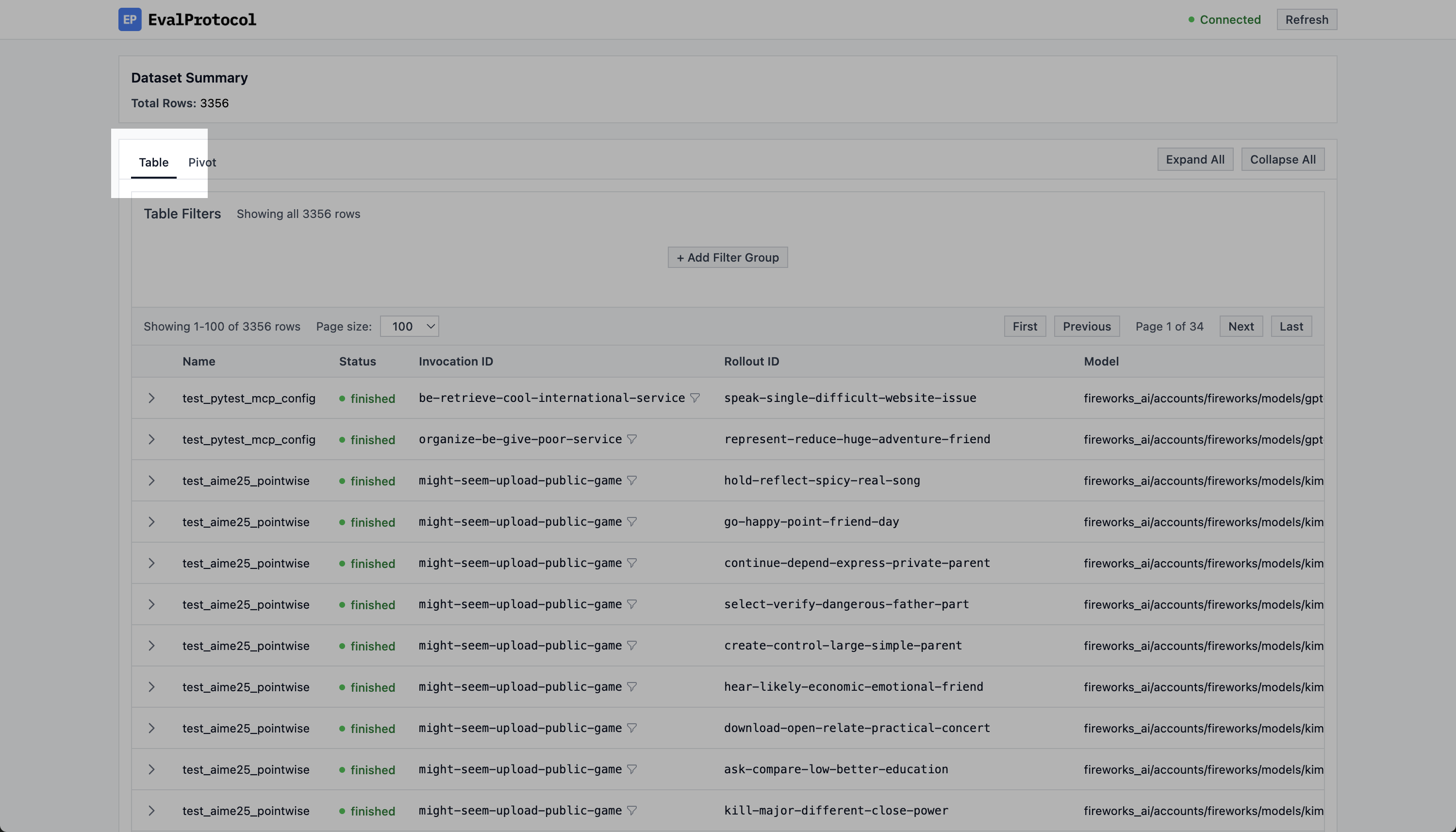
To know if you are in the table view, check that the `Table` tab is selected in
the top left corner of the UI.
Make sure you are in the Table View by checking the top left corner of the UI for the Table tab.}>
 ## Inspecting a row
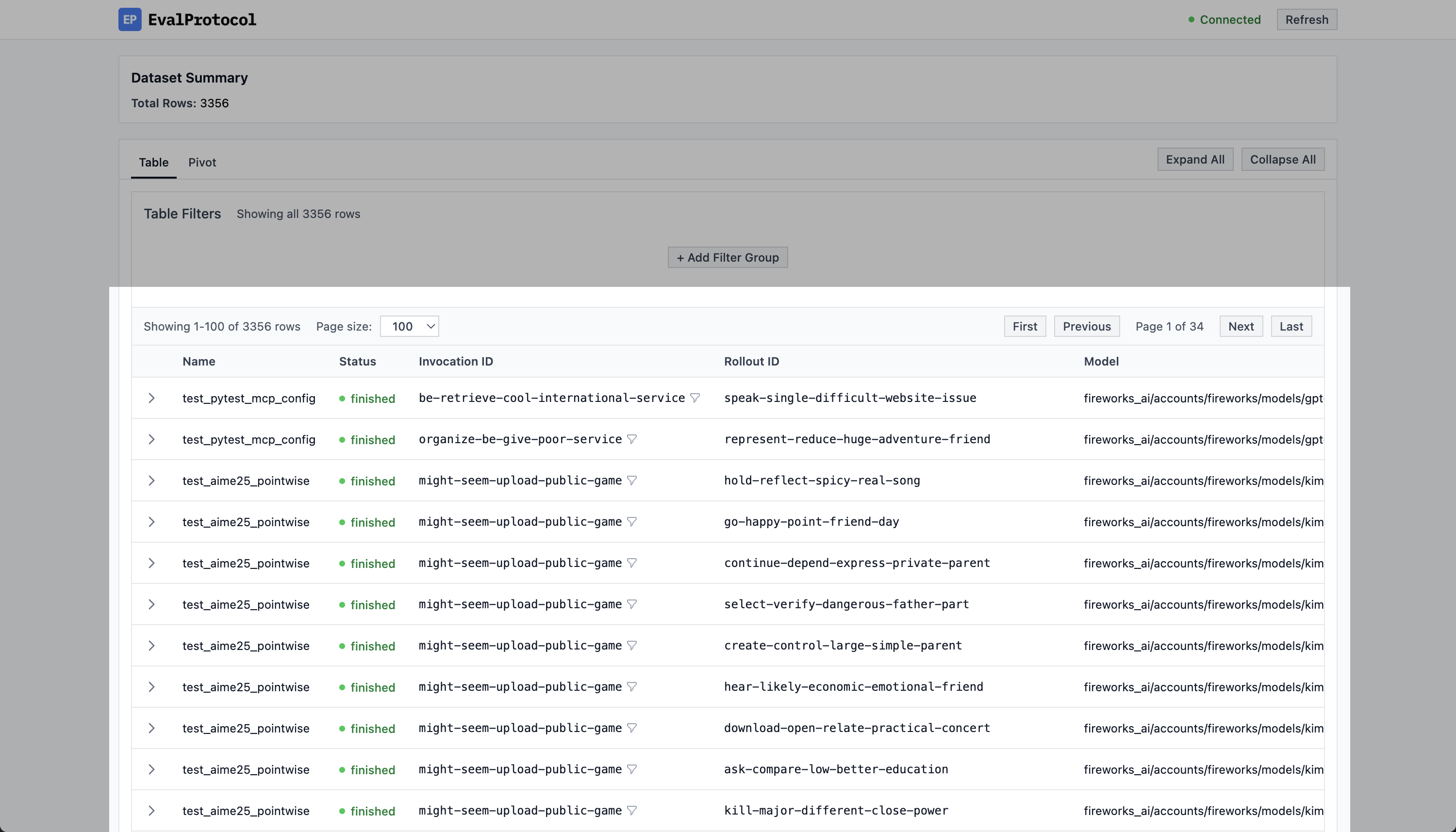
In the table view, you will see a list of evaluation rows. For each row, you can see:
* **Name**: the test function name
* **Status**: either `running`, `finished`, `stopped`, or `error`
* **Invocation ID**: auto-generated by EP for every [invocation](/specification#invocation)
* **Rollout ID**: auto-generated by EP for every [rollout](/specification#rollout)
* **Model**: the model used for the evaluation
* **Score**: found in `evaluation_result.score`
* **Created**: the timestamp of when the row was created
List of evaluation rows.}>
## Inspecting a row
In the table view, you will see a list of evaluation rows. For each row, you can see:
* **Name**: the test function name
* **Status**: either `running`, `finished`, `stopped`, or `error`
* **Invocation ID**: auto-generated by EP for every [invocation](/specification#invocation)
* **Rollout ID**: auto-generated by EP for every [rollout](/specification#rollout)
* **Model**: the model used for the evaluation
* **Score**: found in `evaluation_result.score`
* **Created**: the timestamp of when the row was created
List of evaluation rows.}>
 To inspect a row, hover over the row you want to inspect and click to expand.
When you expand a row, you can see the trajectory of the rollout as well as
other metadata like evaluation results, IDs, input metadata, and eval metadata.
Click on a row to inspect the evaluation.}>
### Chat Interface
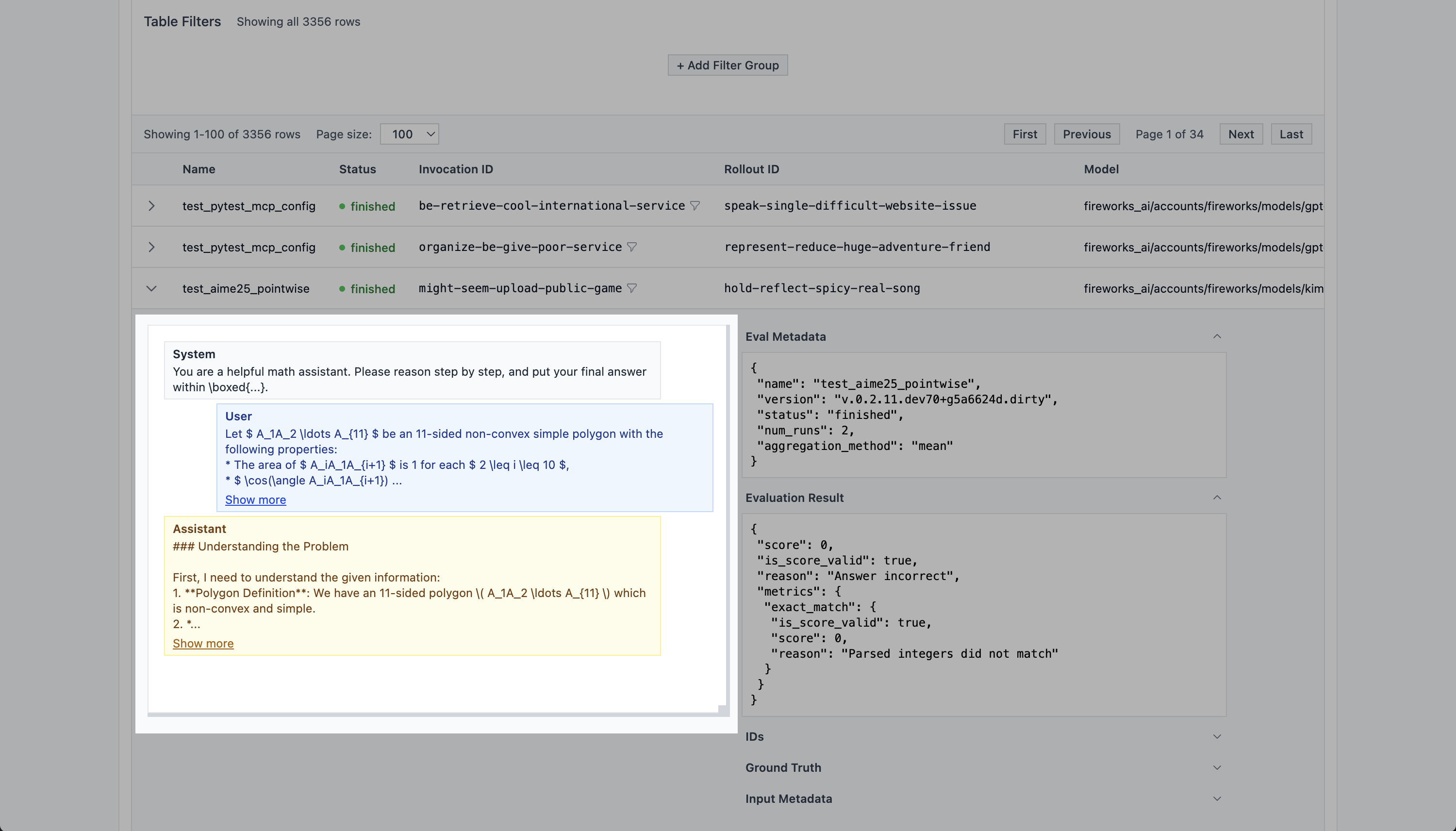
On the left side of an expanded row, you can see the chat interface. This is
where you can see the trajectory of the rollout to inspect the model's responses
and tool calls.
On the left side of an expanded row, you can see the chat interface.}>
To inspect a row, hover over the row you want to inspect and click to expand.
When you expand a row, you can see the trajectory of the rollout as well as
other metadata like evaluation results, IDs, input metadata, and eval metadata.
Click on a row to inspect the evaluation.}>
### Chat Interface
On the left side of an expanded row, you can see the chat interface. This is
where you can see the trajectory of the rollout to inspect the model's responses
and tool calls.
On the left side of an expanded row, you can see the chat interface.}>
 ### Metadata
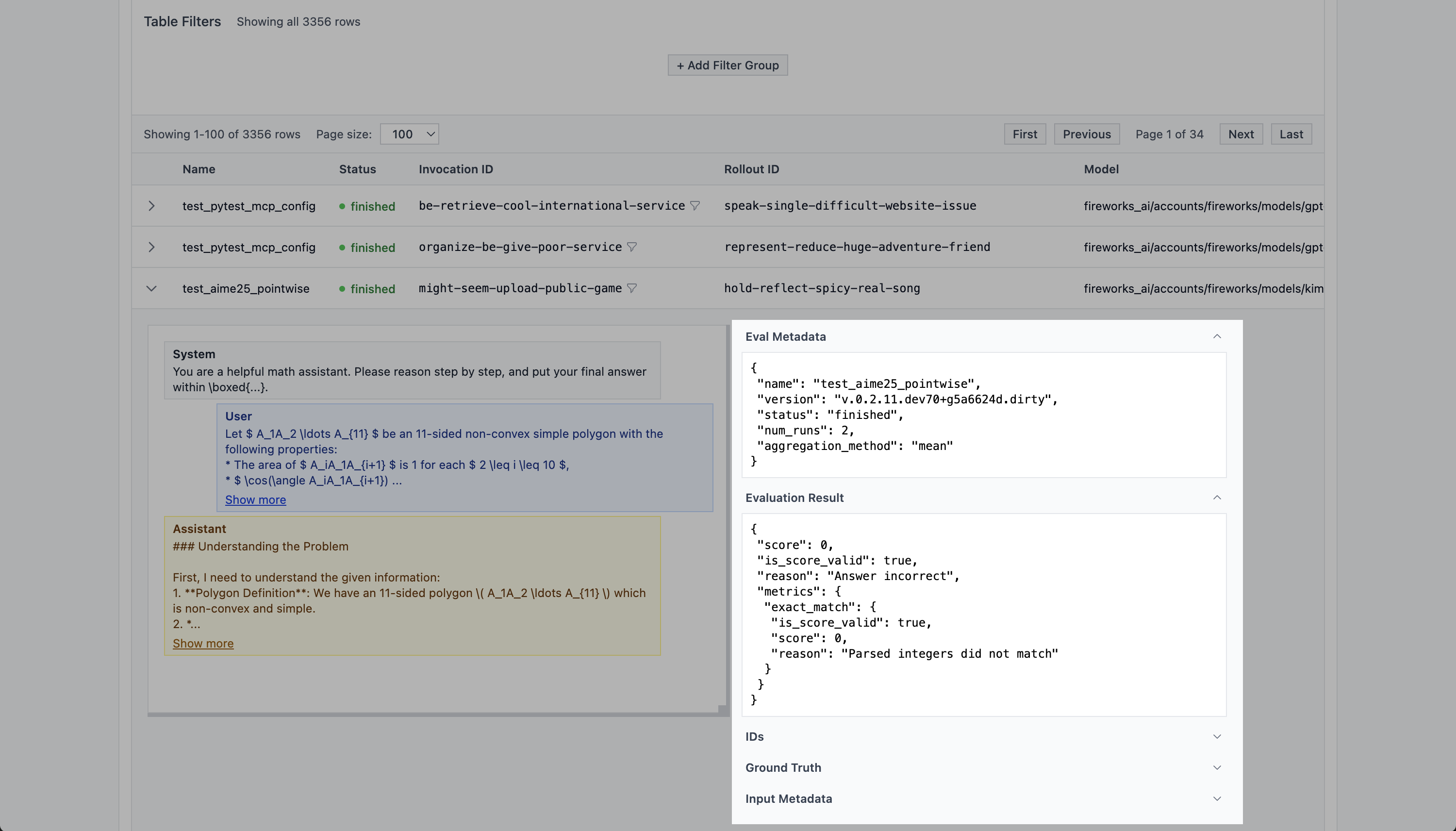
On the right side of an expanded row, you can see the metadata. This is where
you can see the evaluation results, IDs, input metadata, and eval metadata.
On the right side of an expanded row, you can see the metadata.}>
### Metadata
On the right side of an expanded row, you can see the metadata. This is where
you can see the evaluation results, IDs, input metadata, and eval metadata.
On the right side of an expanded row, you can see the metadata.}>
 ## Filtering
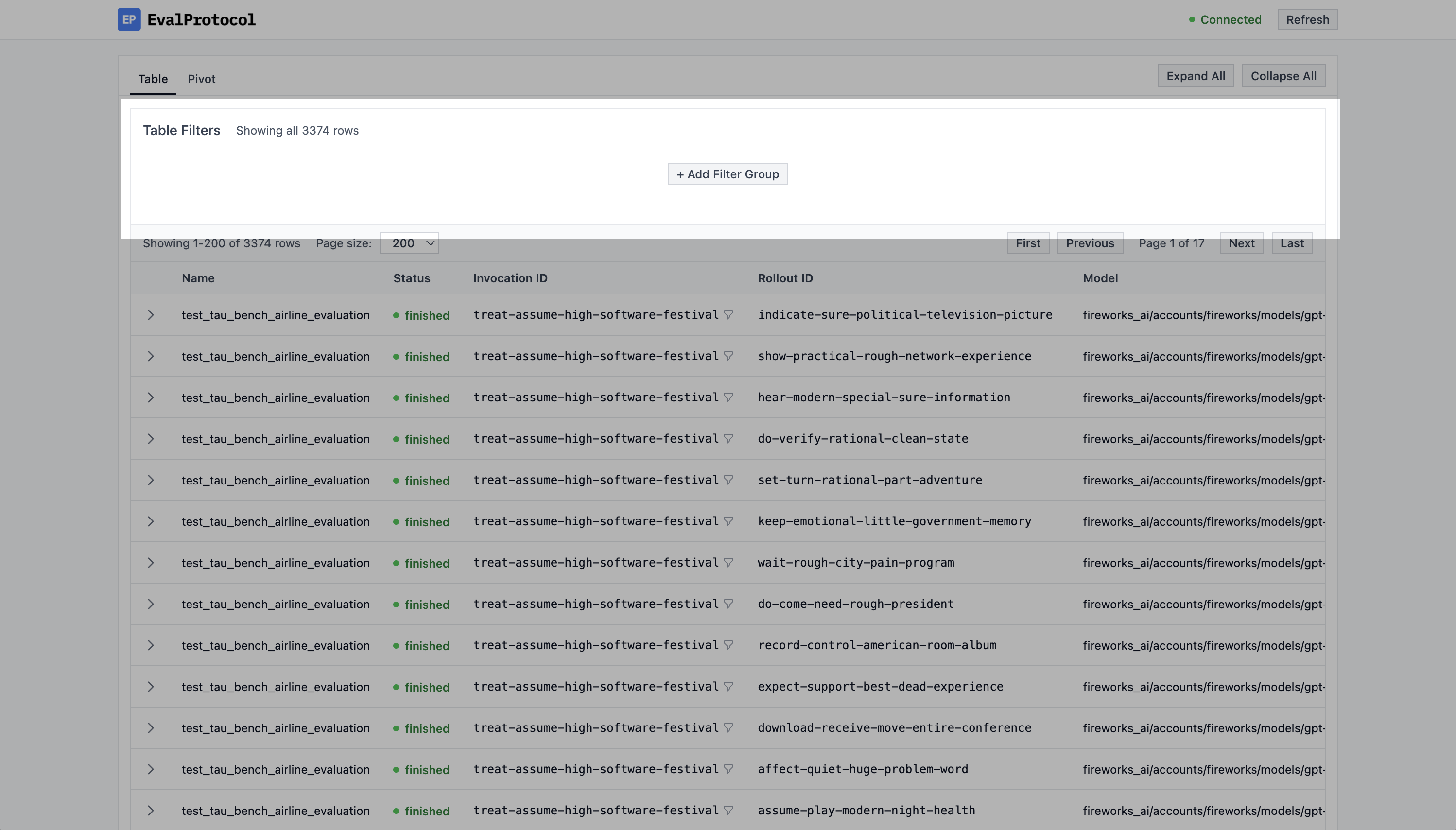
Above the table, you can see a section for configuring filters. You can filter based on any attribute of the evaluation row.
The filter section above the table.}>
## Filtering
Above the table, you can see a section for configuring filters. You can filter based on any attribute of the evaluation row.
The filter section above the table.}>
 ### Filtering based on Invocation ID
Often times you just want to see the rollouts for a single
[invocation](/specification#invocation). To do this, you can easily click on the
funnel icon next to the invocation ID in the table. This will automatically add
a filter for the invocation ID to the table.
Click on the funnel icon next to the invocation ID to filter the table by invocation ID.}>
### Custom filters
You can also create custom filters by clicking on the `+ Add Filter Group`
button above the table. Then you can choose to filter by `AND` or `OR` and add
filters to the group by clicking on the `+ Add Filter to Group` button.
Click on the
### Filtering based on Invocation ID
Often times you just want to see the rollouts for a single
[invocation](/specification#invocation). To do this, you can easily click on the
funnel icon next to the invocation ID in the table. This will automatically add
a filter for the invocation ID to the table.
Click on the funnel icon next to the invocation ID to filter the table by invocation ID.}>
### Custom filters
You can also create custom filters by clicking on the `+ Add Filter Group`
button above the table. Then you can choose to filter by `AND` or `OR` and add
filters to the group by clicking on the `+ Add Filter to Group` button.
Click on the + Add Filter Group button above the table to create a custom filter. In this example, we filter for scores equal to 0, models with gpt in the name, and a specific run_id.}>
## Viewing live rollouts
When it takes a long time to run an eval, it can be helpful to see the live
rollouts so you can track the progress of an eval and catch unexpected errors or problems.
Whenever you run an `@evaluation_test`, the UI automatically shows `running`
tests and you can watch rollouts live in the chat interface. When a test finishes,
detailed evaluation results appear to the right of the chat.
Checkout this example of a test running in VSCode and the UI updating with the
rollout.
Expand running rows to see the chat interface update with the rollout.}>
## Next Steps
Often times you want to ask questions like "how did the model perform on this
eval across this dataset?" or "which model should I use for my application?".
Creating and running evals helps you answer these questions, but answering these
questions requires computing some aggregate metrics across a set of evaluation rows.
To do this, you can use the [Pivot View](/tutorial/ui/pivot) to pivot the data
and see the data in a different way.