> ## Documentation Index
> Fetch the complete documentation index at: https://evalprotocol.io/llms.txt
> Use this file to discover all available pages before exploring further.
# Starting the UI
Reviewing model outputs by hand is an important part of evaluating quality. EP
makes this process simple by offering an easy-to-use, locally hosted UI you can
set up in minutes.
To start the UI, simply run the following command and open your browser to [http://localhost:8000](http://localhost:8000).
```bash CLI theme={null}
ep logs
```
Ensure the `eval-protocol` package is installed so the `ep` CLI is available.
```bash theme={null}
# Add to your project (installs the `ep` CLI in your environment)
uv add eval-protocol
# Verify installation
uv run ep --version
```
```bash theme={null}
# Install or upgrade
pip install -U eval-protocol
# Verify installation
ep --version
```
Once you navigate to the UI at [http://localhost:8000](http://localhost:8000), you will see a table of
evaluation rows that you can click to inspect.
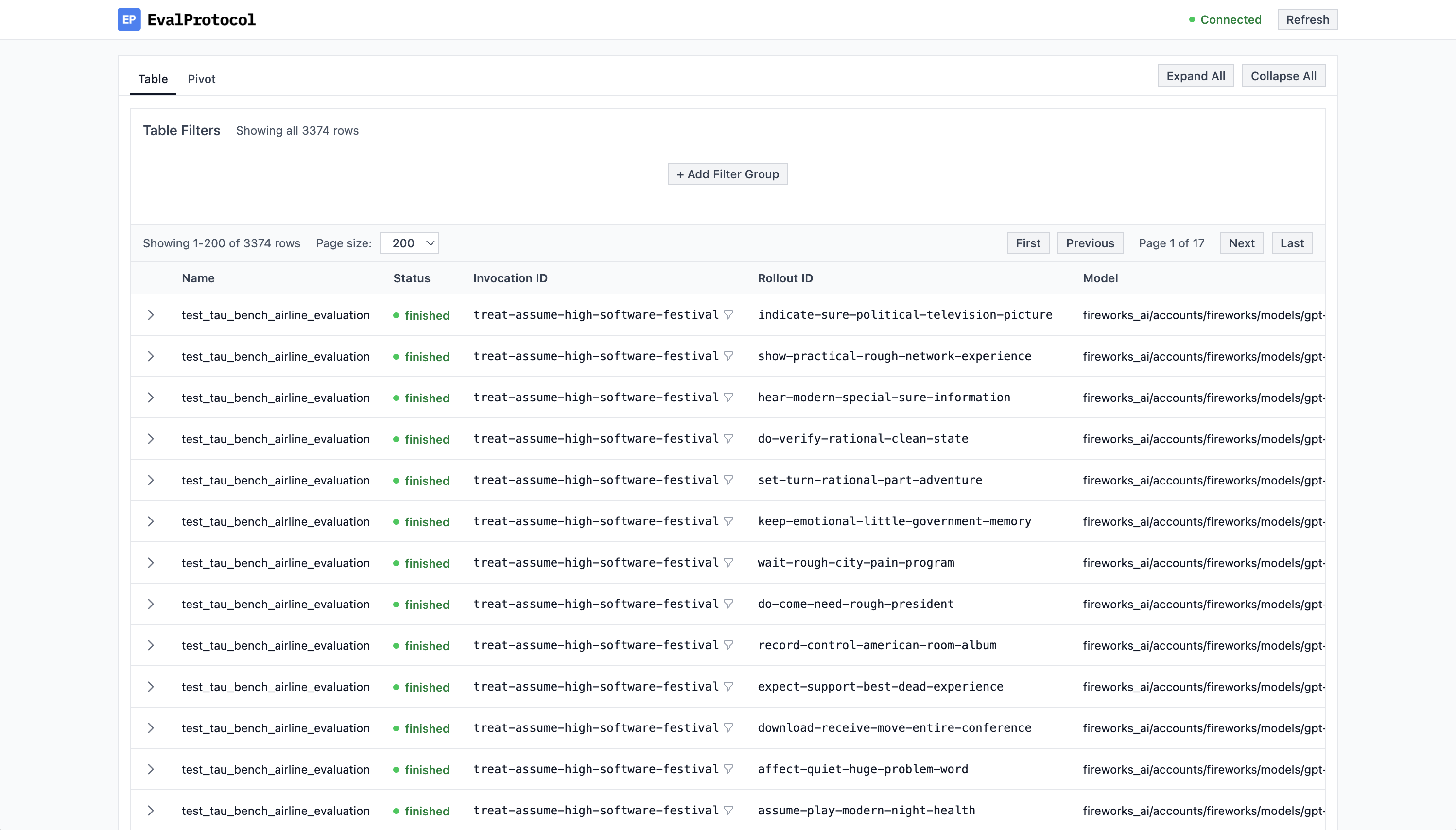 Whenever you run an `@evaluation_test`—whether from the VSCode Test
Explorer/Debugger or from the CLI via `pytest`—the UI automatically shows
`running` tests and you can watch rollouts live in the chat interface. When a
test finishes, detailed evaluation results appear to the right of the chat.
Tests are stored under a SQLite database on your local device at
`.eval_protocol/logs.db` in the root of your Python project.
To run your tests in CLI, you use the `pytest` command directly.
```bash theme={null}
# Run your tests (UI will reflect live rollouts)
uv run pytest
```
```bash theme={null}
# Run your tests (UI will reflect live rollouts)
pytest
```
You can also run tests in your IDE. Once you have your tests running, you can
open the UI at [http://localhost:8000](http://localhost:8000) to monitor
rollouts live.
Example of a test running in VSCode and the UI showing live rollouts
Whenever you run an `@evaluation_test`—whether from the VSCode Test
Explorer/Debugger or from the CLI via `pytest`—the UI automatically shows
`running` tests and you can watch rollouts live in the chat interface. When a
test finishes, detailed evaluation results appear to the right of the chat.
Tests are stored under a SQLite database on your local device at
`.eval_protocol/logs.db` in the root of your Python project.
To run your tests in CLI, you use the `pytest` command directly.
```bash theme={null}
# Run your tests (UI will reflect live rollouts)
uv run pytest
```
```bash theme={null}
# Run your tests (UI will reflect live rollouts)
pytest
```
You can also run tests in your IDE. Once you have your tests running, you can
open the UI at [http://localhost:8000](http://localhost:8000) to monitor
rollouts live.
Example of a test running in VSCode and the UI showing live rollouts
Left: VSCode Test using @evaluation_test
Right: Log Viewer UI at http://localhost:8000}>
## Next Steps
Checkout the [Table View](/tutorial/ui/table) and [Pivot View](/tutorial/ui/pivot) for
more information on how to use the UI.